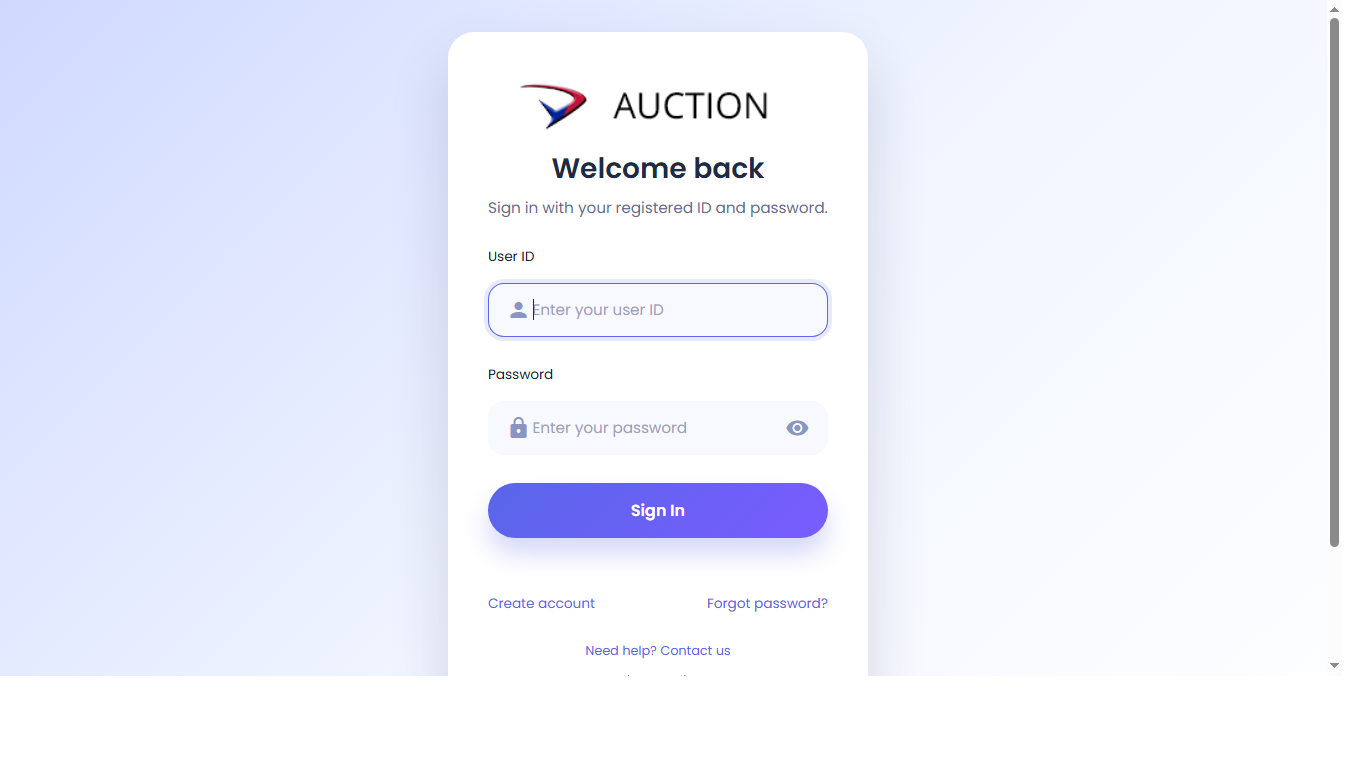
- 1Click User IDEN Click the User ID box and enter the registered username.BM Klik kotak User ID dan masukkan nama pengguna berdaftar.中文 点击 User ID 输入框,输入已注册的用户名。
- 2Click PasswordEN Enter the password. Use the eye icon only if the user needs to check typing.BM Masukkan kata laluan. Guna ikon mata hanya jika perlu semak taipan.中文 输入密码。如需检查输入,可点眼睛图标显示密码。
- 3Click Sign InEN Click once and wait for Home to load.BM Klik sekali dan tunggu halaman Home dibuka.中文 点击一次 Sign In,然后等待进入首页。
- 4Account help linksEN Use Create account for new users or Forgot password for reset.BM Guna Create account untuk pengguna baharu atau Forgot password untuk reset.中文 新用户点 Create account,忘记密码点 Forgot password。
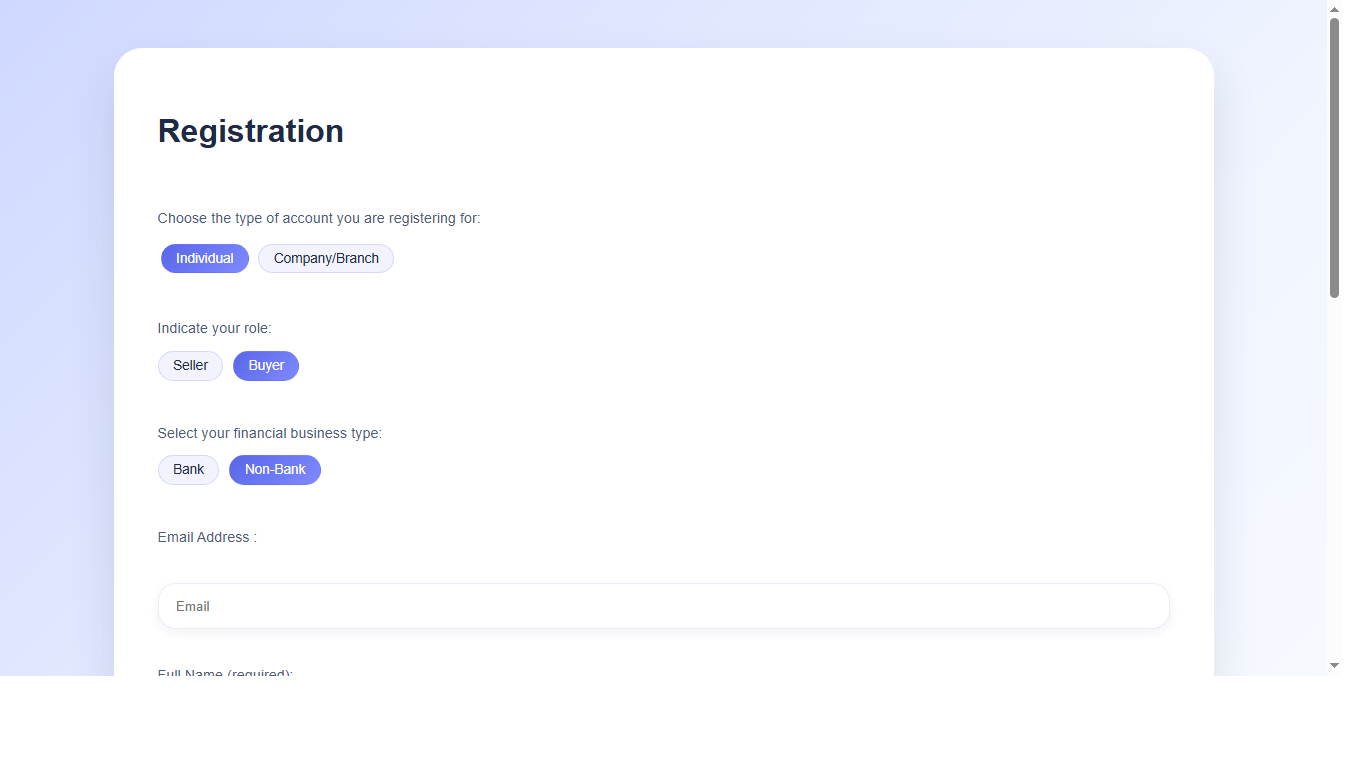
- 1Enter profile detailsEN Fill in name, contact number, email, and identity/company details.BM Isi nama, nombor telefon, emel, dan maklumat IC/syarikat.中文 填写姓名、电话、电邮和身份证/公司资料。
- 2Check required fieldsEN Scroll through the form and complete every required field.BM Skrol borang dan lengkapkan semua medan wajib.中文 滑动表格,填写所有必填栏位。
- 3Create passwordEN Use a password the customer can remember and confirm it correctly.BM Guna kata laluan yang mudah diingat pelanggan dan sahkan dengan betul.中文 设置客户记得住的密码,并正确确认密码。
- 4Submit registrationEN Submit once, then return to Login after the account is created.BM Hantar sekali, kemudian kembali ke Login selepas akaun dibuat.中文 点击提交一次,账号创建后返回登录页。
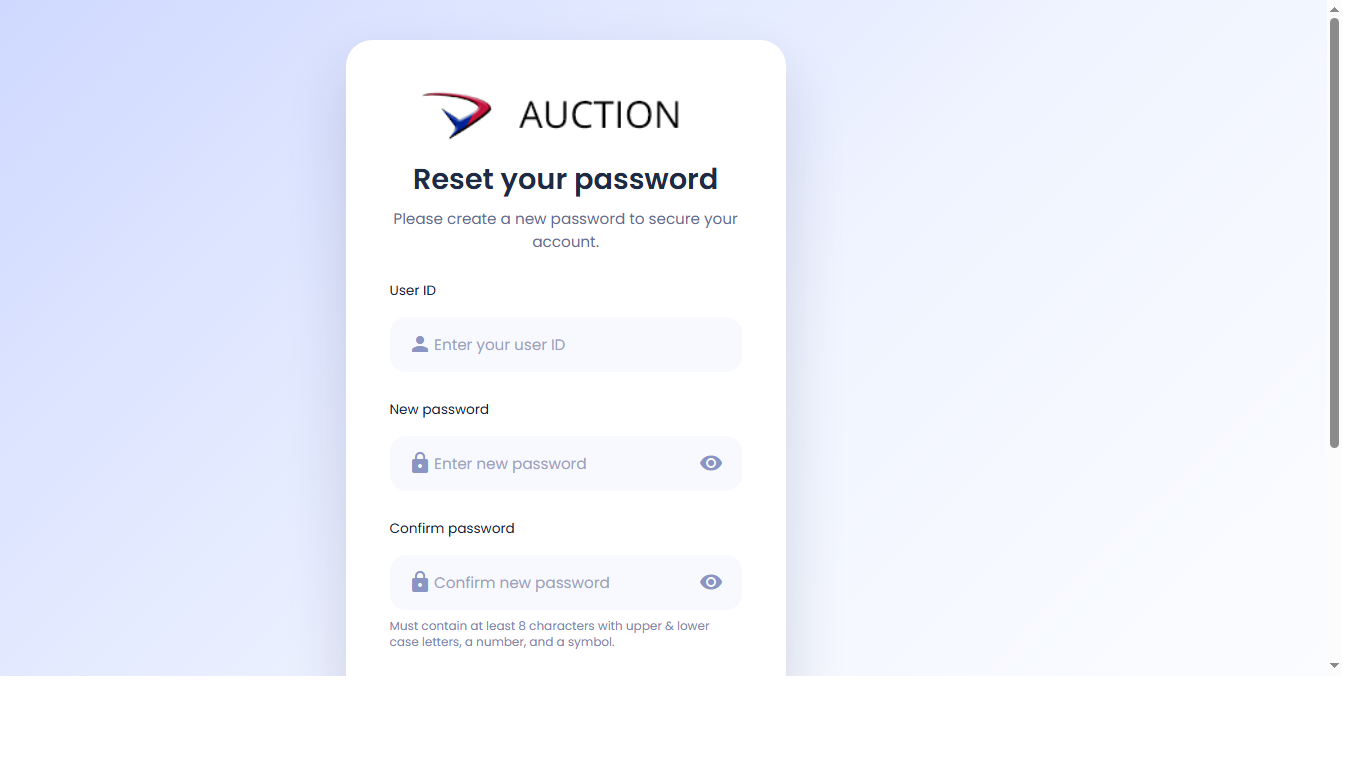
- 1Enter registered emailEN Type the email used when the account was registered.BM Taip emel yang digunakan semasa pendaftaran akaun.中文 输入注册账号时使用的电邮。
- 2Submit requestEN Click the reset button once and wait for the confirmation message.BM Klik butang reset sekali dan tunggu mesej pengesahan.中文 点击重设按钮一次,等待确认信息。
- 3Return to loginEN After reset is completed, go back to Login and sign in again.BM Selepas reset selesai, kembali ke Login dan log masuk semula.中文 完成重设后,返回登录页重新登录。
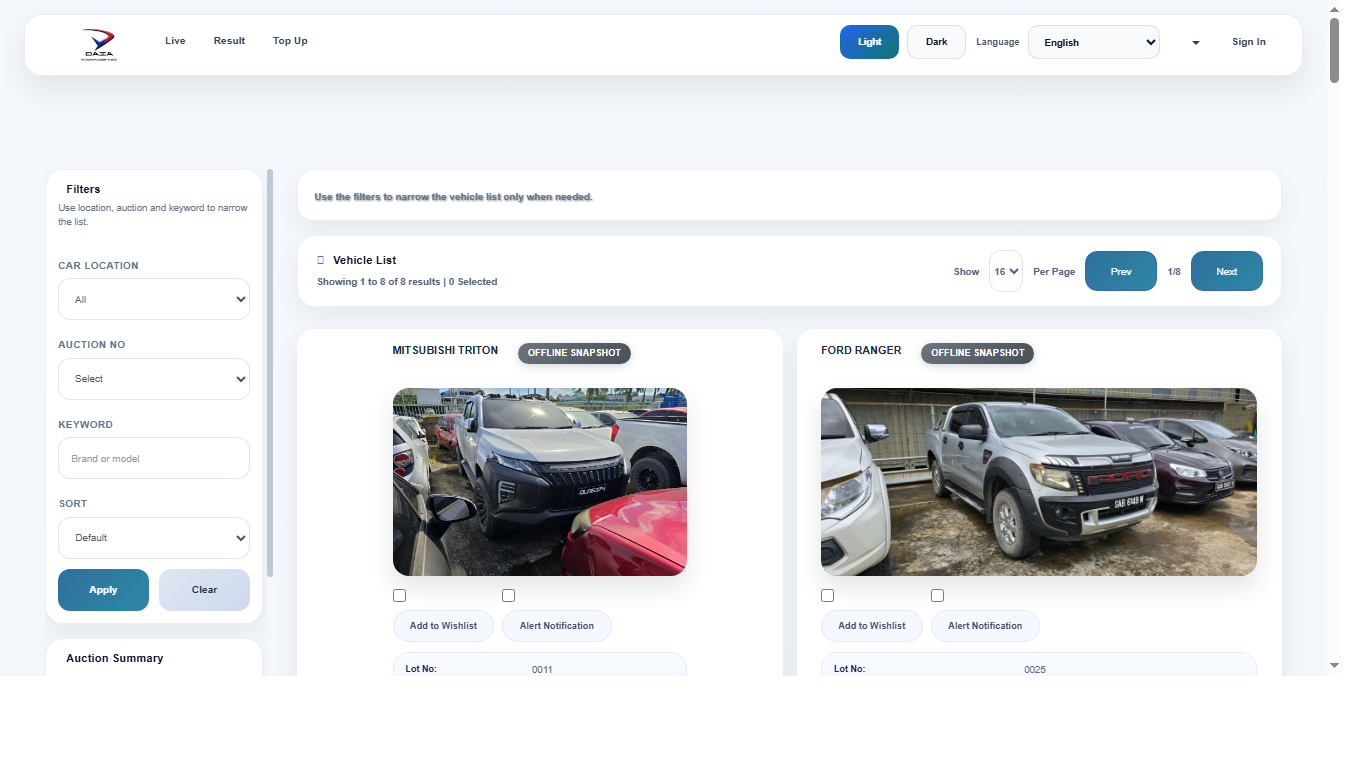
- 1Use filtersEN Choose location, auction number, keyword, sort, then click Apply.BM Pilih lokasi, nombor lelongan, kata kunci, susunan, kemudian klik Apply.中文 选择地点、拍卖编号、关键字、排序,然后点击 Apply。
- 2Check page countEN Use Show per page and Previous/Next to move through the vehicle list.BM Guna Show per page dan Previous/Next untuk lihat senarai seterusnya.中文 使用每页显示数量和上一页/下一页浏览车辆。
- 3Open vehicle cardEN Review photo, lot number, car plate, auction date, and source badge.BM Semak gambar, nombor lot, nombor plat, tarikh lelongan, dan lencana sumber.中文 查看照片、Lot 号码、车牌、拍卖日期和来源标记。
- 4Sign in for actionsEN Click Sign In before bidding, wallet top-up, result, or account actions.BM Klik Sign In sebelum bida, tambah token, lihat keputusan, atau akaun.中文 出价、充值、查看结果或账号操作前,请先登录。
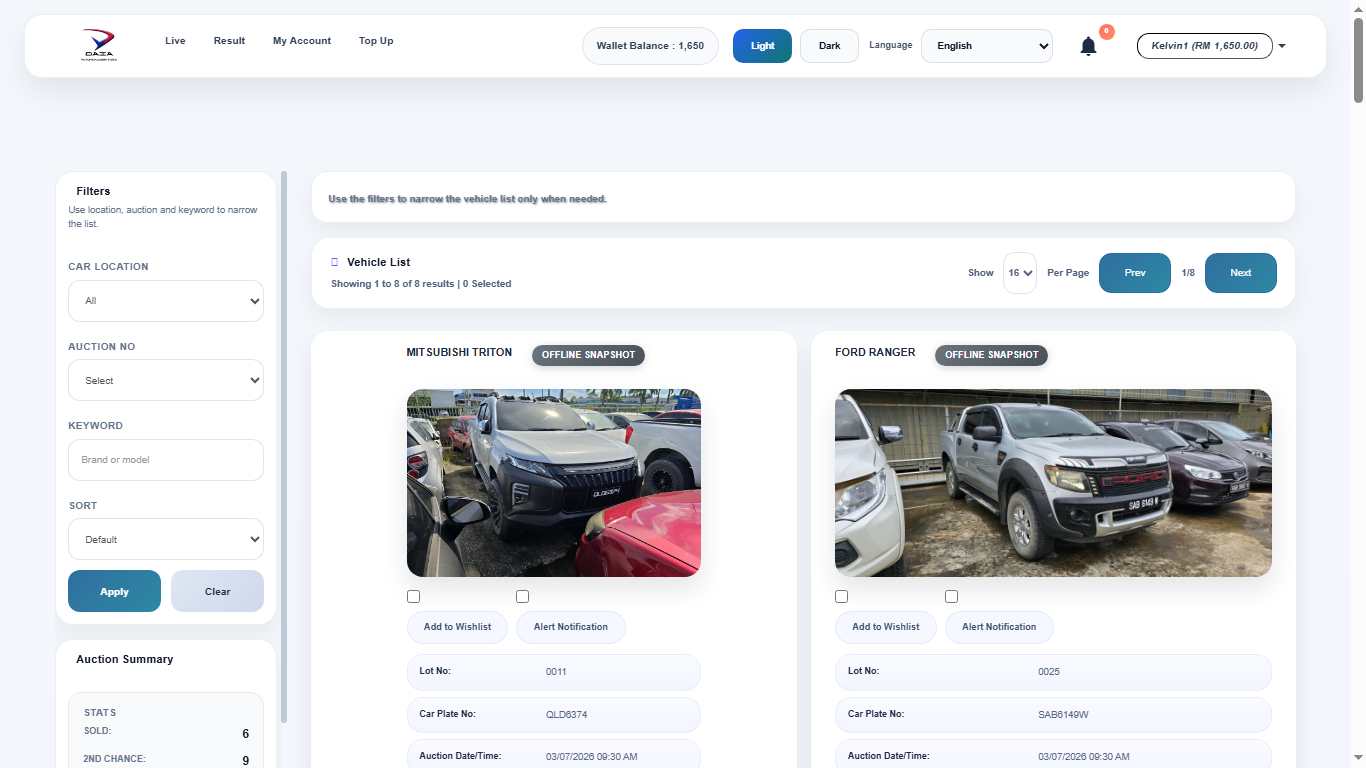
- 1Top navigationEN Click Live, Result, My Account, or Top Up from the top bar.BM Klik Live, Result, My Account, atau Top Up pada bar atas.中文 在顶部菜单点击 Live、Result、My Account 或 Top Up。
- 2Wallet balanceEN Check available token balance before bidding.BM Semak baki token sebelum membuat bidaan.中文 出价前先查看可用代币余额。
- 3NotificationsEN Click the bell to check alerts for watched vehicles.BM Klik ikon loceng untuk semak notifikasi kenderaan.中文 点击铃铛查看关注车辆的提醒。
- 4User menuEN Open the user menu for account options and logout.BM Buka menu pengguna untuk pilihan akaun dan logout.中文 打开用户菜单查看账号选项和退出登录。
- 5Vehicle actionsEN Use wishlist, alert notification, and Bid buttons on each vehicle.BM Guna wishlist, alert notification, dan butang Bid pada kenderaan.中文 在车辆卡片上使用收藏、提醒和 Bid 按钮。
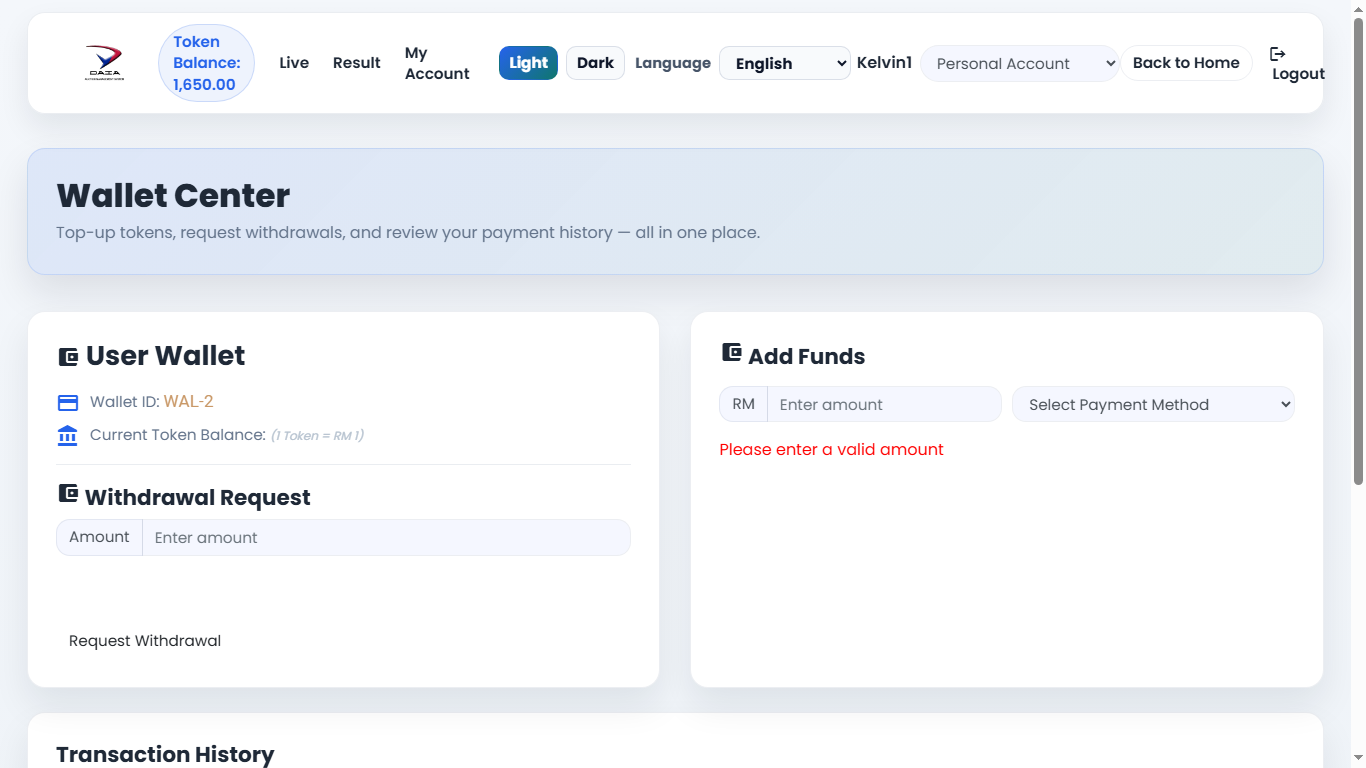
- 1Confirm token balanceEN Check token balance before bidding or paying from wallet.BM Semak baki token sebelum bida atau bayar melalui wallet.中文 出价或使用钱包付款前,先确认代币余额。
- 2Withdrawal requestEN Enter the withdrawal amount, then click Request Withdrawal.BM Masukkan jumlah pengeluaran, kemudian klik Request Withdrawal.中文 输入提款金额,然后点击 Request Withdrawal。
- 3Add fundsEN Enter amount, select payment method, then continue with the payment flow.BM Masukkan jumlah, pilih kaedah bayaran, kemudian teruskan bayaran.中文 输入金额,选择付款方式,然后继续付款流程。
- 4Transaction historyEN Scroll down to review top-up, withdrawal, and payment records.BM Skrol ke bawah untuk semak rekod top-up, pengeluaran, dan bayaran.中文 往下滑动查看充值、提款和付款记录。
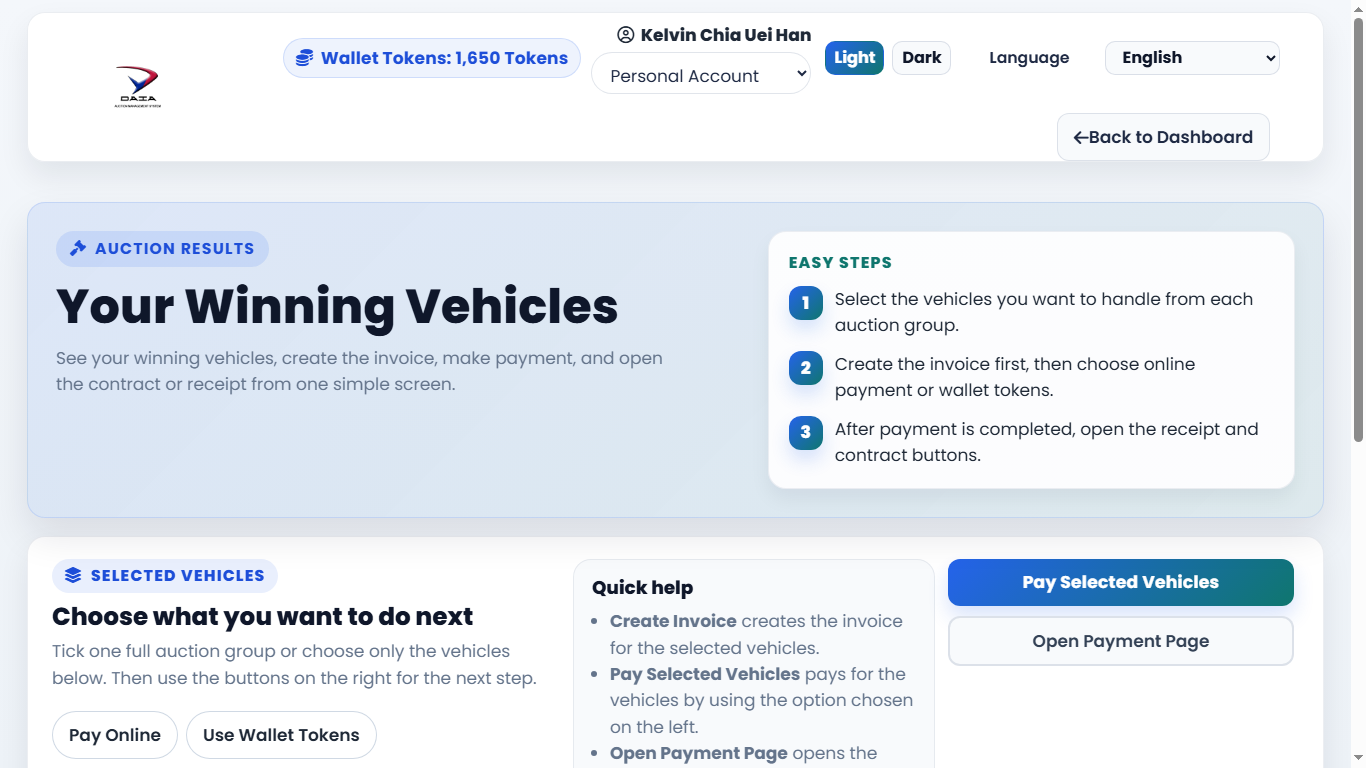
- 1Read easy stepsEN Review the three on-screen steps before creating invoice or payment.BM Baca tiga langkah pada skrin sebelum buat invois atau bayaran.中文 创建发票或付款前,先阅读页面上的三个步骤。
- 2Select payment optionEN Choose Pay Online or Use Wallet Tokens for the selected vehicles.BM Pilih Pay Online atau Use Wallet Tokens untuk kenderaan terpilih.中文 为选中的车辆选择在线付款或使用钱包代币。
- 3Pay selected vehiclesEN Click Pay Selected Vehicles after choosing the correct auction group.BM Klik Pay Selected Vehicles selepas pilih kumpulan lelongan yang betul.中文 选择正确拍卖组后,点击 Pay Selected Vehicles。
- 4Open payment pageEN Open Payment Page only after invoice/payment preparation is ready.BM Buka Payment Page hanya selepas invois/bayaran sedia.中文 发票或付款准备好后,再打开 Payment Page。
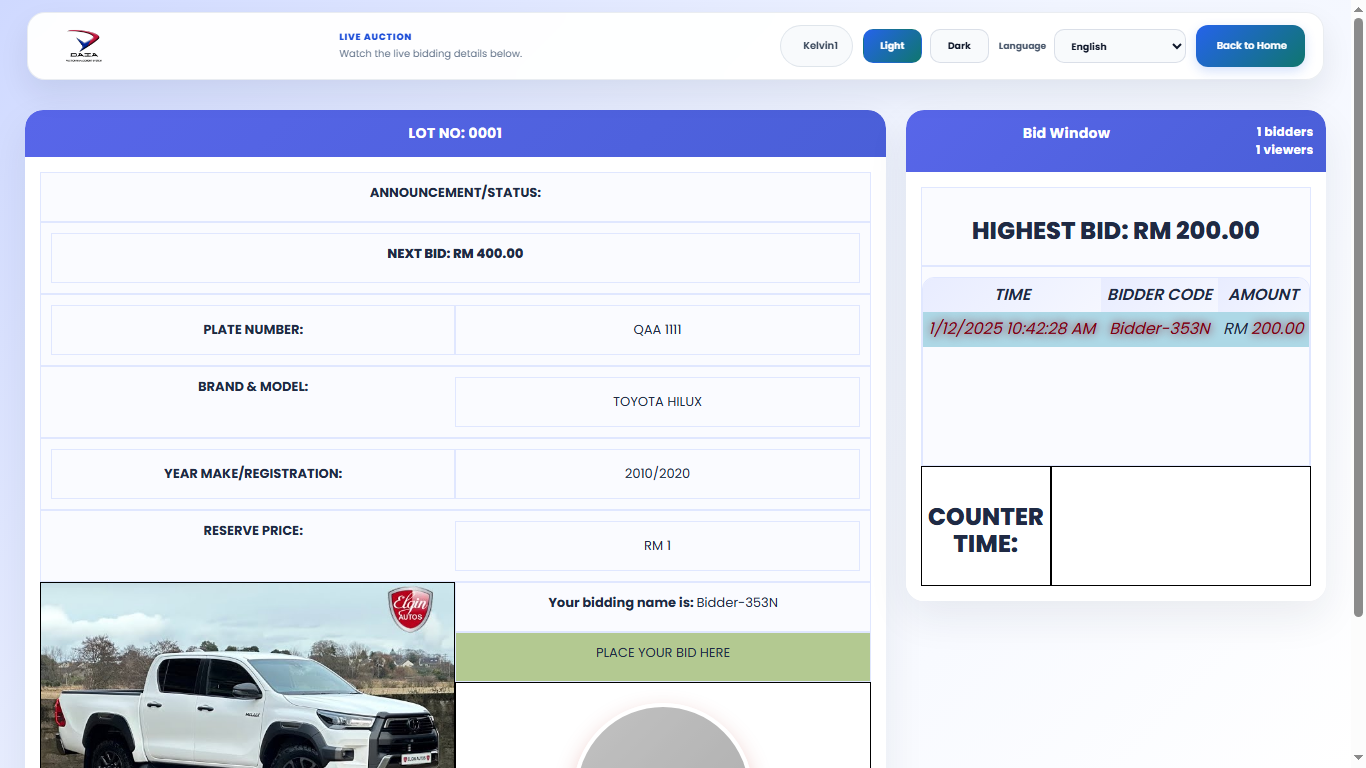
- 1Check next bidEN Read Lot No, announcement/status, and Next Bid amount before bidding.BM Semak Lot No, announcement/status, dan jumlah Next Bid sebelum bida.中文 出价前先看 Lot No、状态公告和下一口价。
- 2Watch bid windowEN Highest bid, bidder count, viewer count, and bid history update here.BM Highest bid, jumlah pembida, jumlah penonton, dan sejarah bida dipaparkan di sini.中文 最高价、出价人数、观看人数和出价记录会显示在这里。
- 3Confirm vehicle detailsEN Check plate number, brand/model, year, reserve price, and vehicle photo.BM Semak nombor plat, jenama/model, tahun, harga simpanan, dan gambar kenderaan.中文 检查车牌、品牌/型号、年份、保留价和车辆照片。
- 4Place bid areaEN Click the bid area only when the user is ready; avoid repeated clicking.BM Klik kawasan bida hanya apabila sudah pasti; elakkan klik berulang.中文 确定要出价时才点击出价区域,避免重复点击。
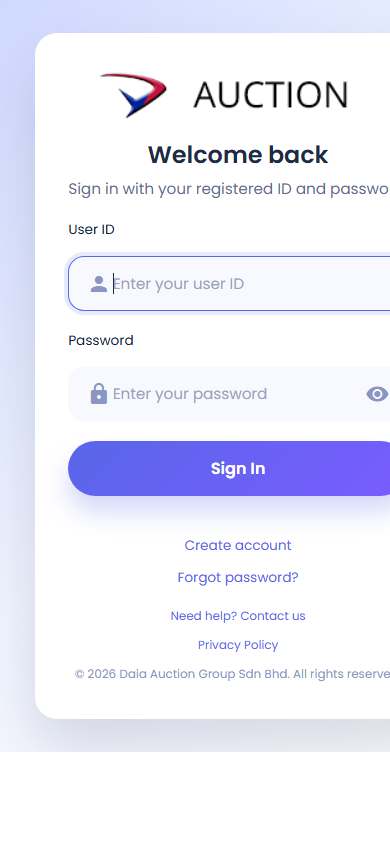
- 1Tap User IDEN Tap the first field, type username, then hide keyboard if needed.BM Ketik medan pertama, taip nama pengguna, kemudian tutup keyboard jika perlu.中文 点第一个输入框,输入用户名,需要时收起键盘。
- 2Tap PasswordEN Enter password and use the eye icon only for checking.BM Masukkan kata laluan dan guna ikon mata hanya untuk semakan.中文 输入密码,如需确认才点眼睛图标。
- 3Tap Sign In onceEN Tap once and do not switch apps while the site loads.BM Ketik sekali dan jangan tukar aplikasi semasa laman dibuka.中文 只点一次,页面加载时不要切换应用。
- 4Use support linksEN Scroll slightly if account links or contact support are hidden.BM Skrol sedikit jika pautan akaun atau support tersembunyi.中文 如果账号链接或客服入口看不到,请稍微下滑。
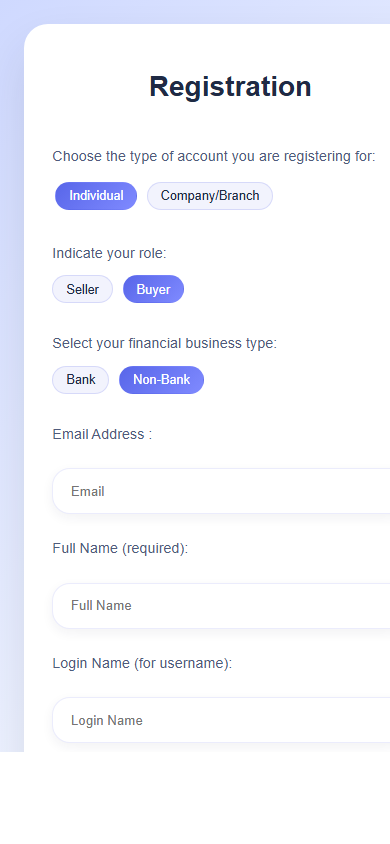
- 1Select account typeEN Choose Individual or Company/Branch, then select Seller or Buyer.BM Pilih Individual atau Company/Branch, kemudian pilih Seller atau Buyer.中文 选择个人或公司/分行账号,然后选择卖家或买家。
- 2Select business typeEN Choose Bank or Non-Bank before filling in profile details.BM Pilih Bank atau Non-Bank sebelum isi maklumat profil.中文 填资料前,先选择银行或非银行类型。
- 3Enter emailEN Type the email carefully because it is used for account communication.BM Taip emel dengan teliti kerana ia digunakan untuk komunikasi akaun.中文 仔细输入电邮,因为账号通知会使用这个电邮。
- 4Continue profile fieldsEN Fill full name and login name, then keep scrolling until all required fields are complete.BM Isi nama penuh dan login name, kemudian terus skrol sampai semua medan wajib lengkap.中文 填写全名和登录名,然后继续下滑完成所有必填资料。
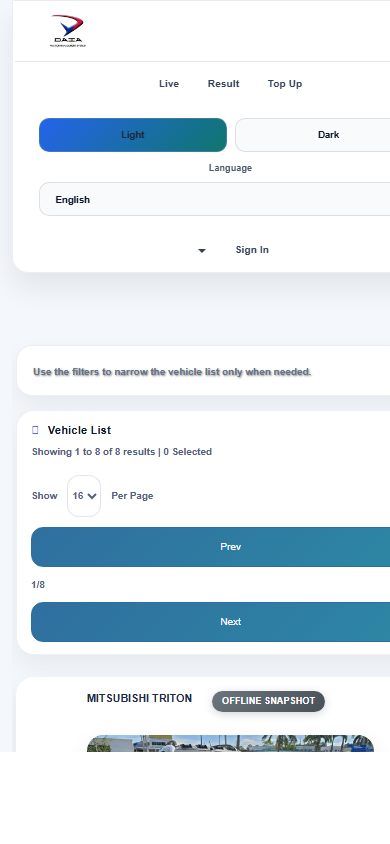
- 1Use top menuEN Tap Live, Result, Top Up, or Sign In when visible.BM Ketik Live, Result, Top Up, atau Sign In apabila kelihatan.中文 看到 Live、Result、Top Up 或 Sign In 时可点击。
- 2Scroll filtersEN Choose filter values, then tap Apply. Use Clear to reset.BM Pilih penapis, kemudian ketik Apply. Guna Clear untuk reset.中文 选择筛选条件后点 Apply;要重置点 Clear。
- 3Review vehicle cardEN Tap photo for more photos, then scroll for vehicle details.BM Ketik gambar untuk lihat gambar lain, kemudian skrol maklumat kenderaan.中文 点击车辆照片查看更多图片,然后下滑查看车辆资料。
- 4Tap action buttons onceEN For bid, wishlist, alert, or document buttons, tap once and wait.BM Untuk bid, wishlist, alert, atau dokumen, ketik sekali dan tunggu.中文 出价、收藏、提醒或文件按钮,请只点一次并等待。
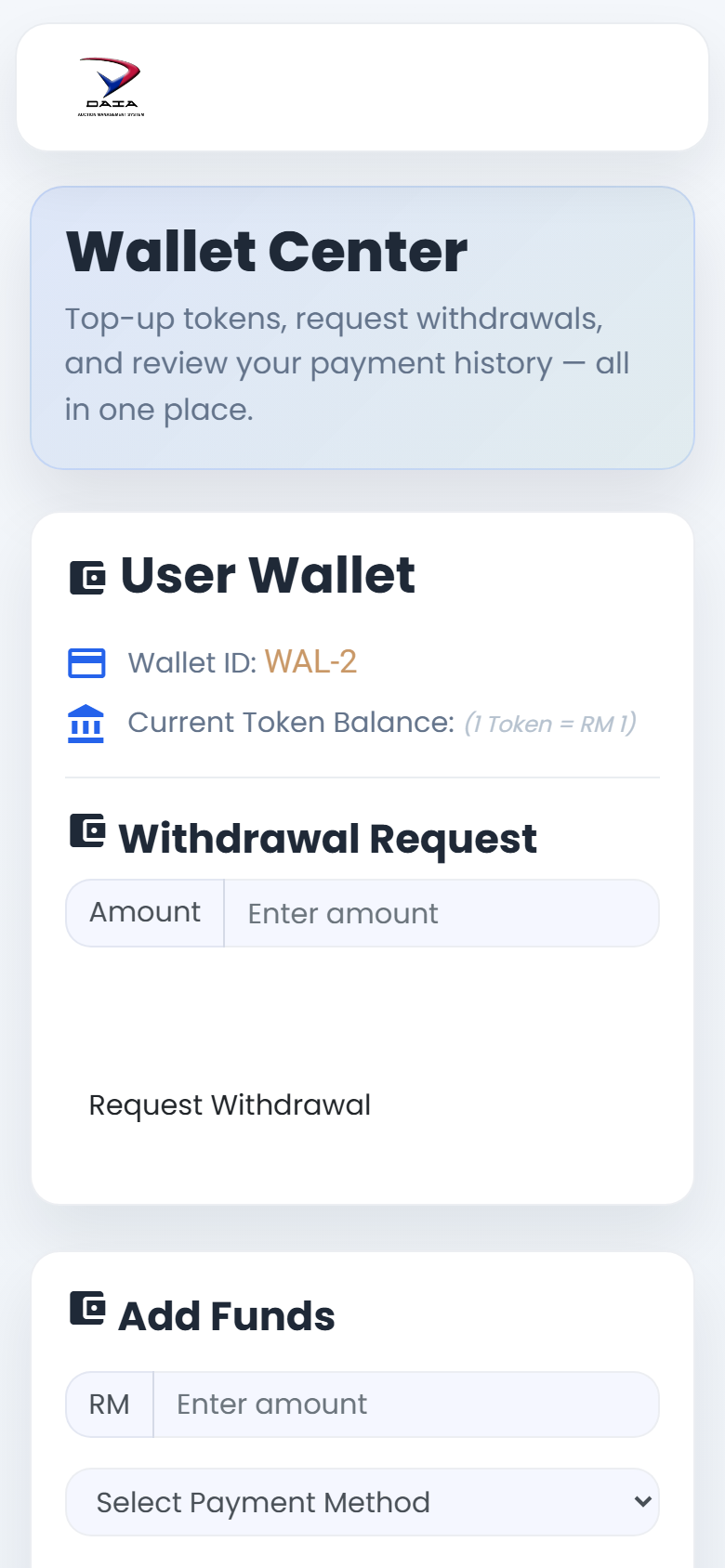
- 1Header controlsEN Use language, theme, account, Back to Home, and Logout from the top.BM Guna bahasa, tema, akaun, Back to Home, dan Logout di bahagian atas.中文 顶部可切换语言/主题、账号、返回首页和退出。
- 2Read wallet balanceEN Confirm wallet ID and current token balance.BM Sahkan Wallet ID dan baki token semasa.中文 确认钱包 ID 和当前代币余额。
- 3Add or withdrawEN Enter amount carefully. Mobile keyboards can cover buttons.BM Masukkan jumlah dengan teliti. Keyboard telefon mungkin tutup butang.中文 谨慎输入金额,手机键盘可能遮住按钮。
- 4Scroll historyEN Scroll down to see transaction records and payment status.BM Skrol ke bawah untuk lihat rekod transaksi dan status bayaran.中文 往下滑动查看交易记录和付款状态。
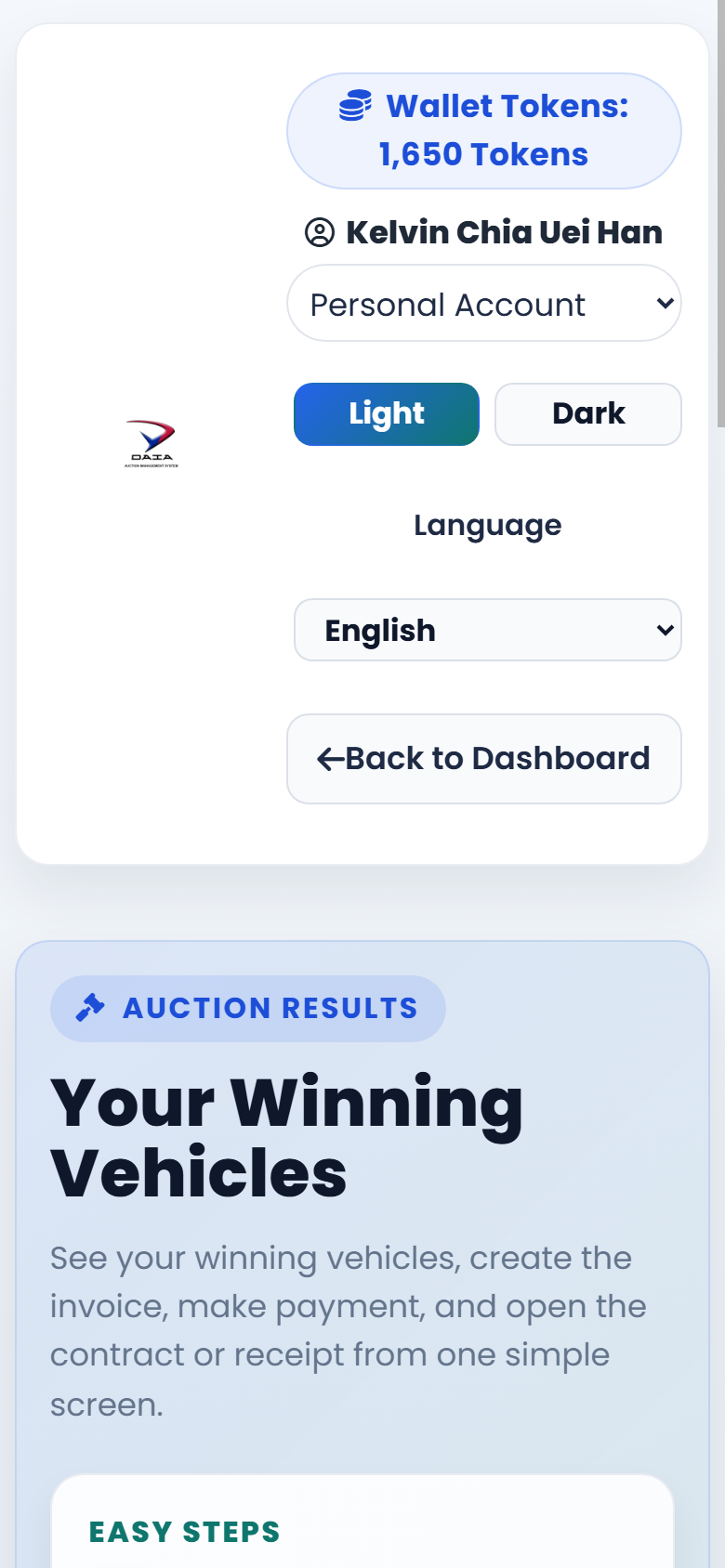
- 1Check winning pageEN Confirm the page title and read the easy steps.BM Sahkan tajuk halaman dan baca langkah mudah.中文 确认页面标题,并阅读简单步骤。
- 2Find selected vehiclesEN Scroll to the selected vehicle section and choose the correct auction group.BM Skrol ke bahagian kenderaan terpilih dan pilih kumpulan lelongan yang betul.中文 滑到已选车辆区域,选择正确的拍卖组。
- 3Choose pay methodEN Tap Pay Online or Use Wallet Tokens.BM Ketik Pay Online atau Use Wallet Tokens.中文 点击 Pay Online 或 Use Wallet Tokens。
- 4Continue paymentEN Tap the payment button once and wait for the next page.BM Ketik butang bayaran sekali dan tunggu halaman seterusnya.中文 付款按钮只点一次,然后等待下一页。
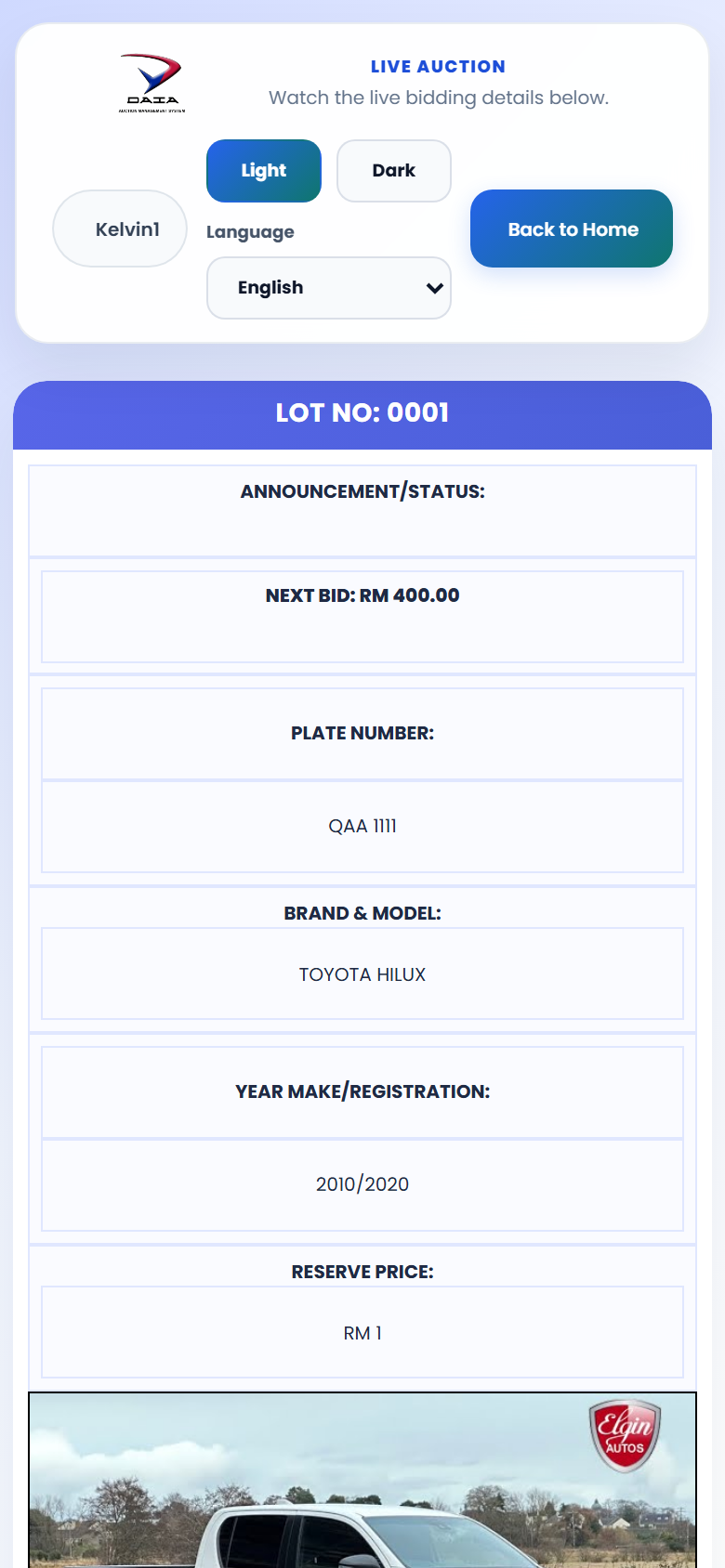
- 1Top controlsEN Confirm user name, language, and Back to Home before bidding.BM Sahkan nama pengguna, bahasa, dan Back to Home sebelum bida.中文 出价前确认用户名、语言和返回首页按钮。
- 2Lot and next bidEN Check Lot No and Next Bid amount at the top of the auction panel.BM Semak Lot No dan Next Bid di bahagian atas panel lelongan.中文 查看拍卖面板顶部的 Lot No 和下一口价。
- 3Vehicle detailsEN Scroll through plate, model, year, reserve price, and photo before bidding.BM Skrol plat, model, tahun, harga simpanan, dan gambar sebelum bida.中文 出价前滑动查看车牌、型号、年份、保留价和照片。
- 4Bid controls belowEN Continue scrolling to the bid controls and bid history; rotate phone if the table is too narrow.BM Terus skrol ke kawalan bida dan sejarah bida; putar telefon jika jadual sempit.中文 继续下滑到出价控制和记录;表格太窄时可横屏查看。